
01 / 04
Read beyond one keyword
Select a phrase to see the context that shapes the visual direction.
- Place
- Tiny apartment
- Time
- After midnight
- Story stage
- Early prototype
- Tone
- Constrained, reflective
- Avoid
- Polished startup office
AI B-roll Generator
Let AI read the context, choose supporting footage, and place each cut where your narration needs it.
Context, choice, placement
Captionate reads the full thought, compares possible footage, and turns the selected range into an editable timeline layer.
Select a phrase to see the context that shapes the visual direction.
Related footage is not always the right footage. Compare the reason behind each choice.
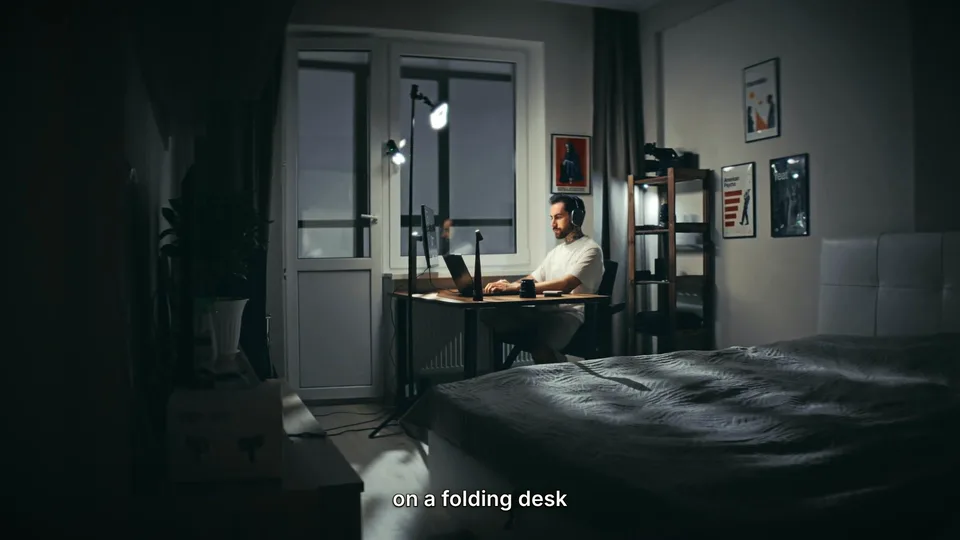 Small apartment desk at night
Why it fits: Matches the place, time, and modest early-stage tone.
Move through the edit. The picture changes while the original narration remains continuous.
Ask for a different visual direction. The narration and surrounding edit stay in place.
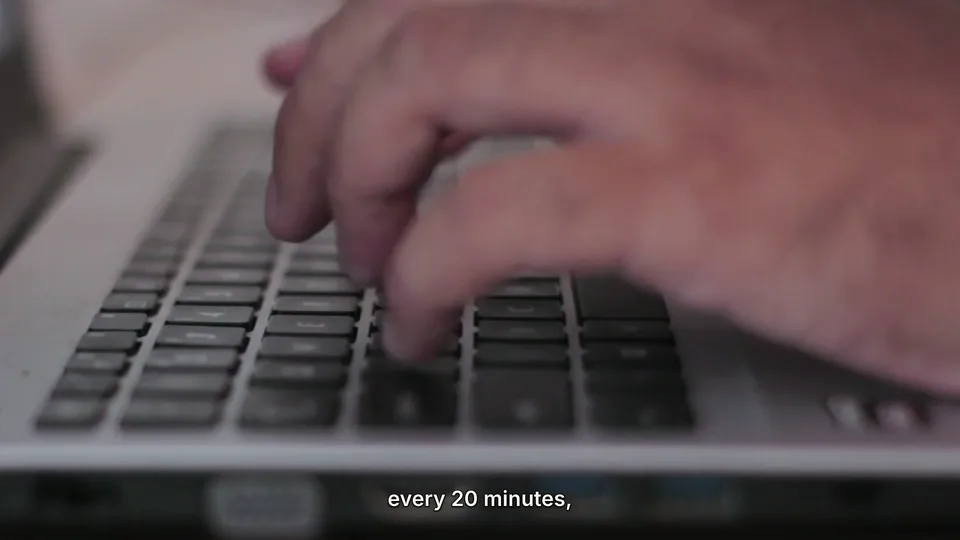 Laptop under strain
Source to result
Editorial roles
Show the environment that makes the next line easier to understand.
Prefer a meaningful action over a generic product close-up.
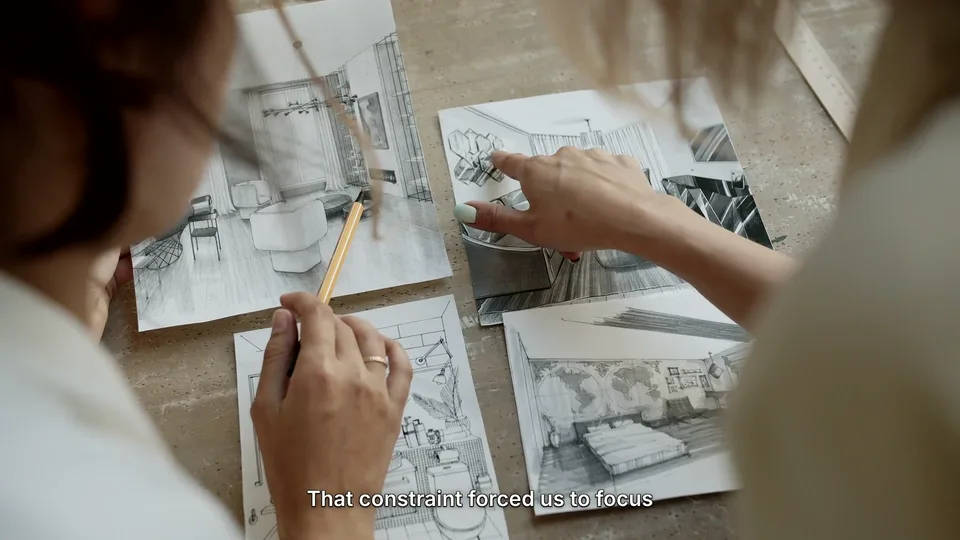
Match the emotional direction when an object would flatten the idea.
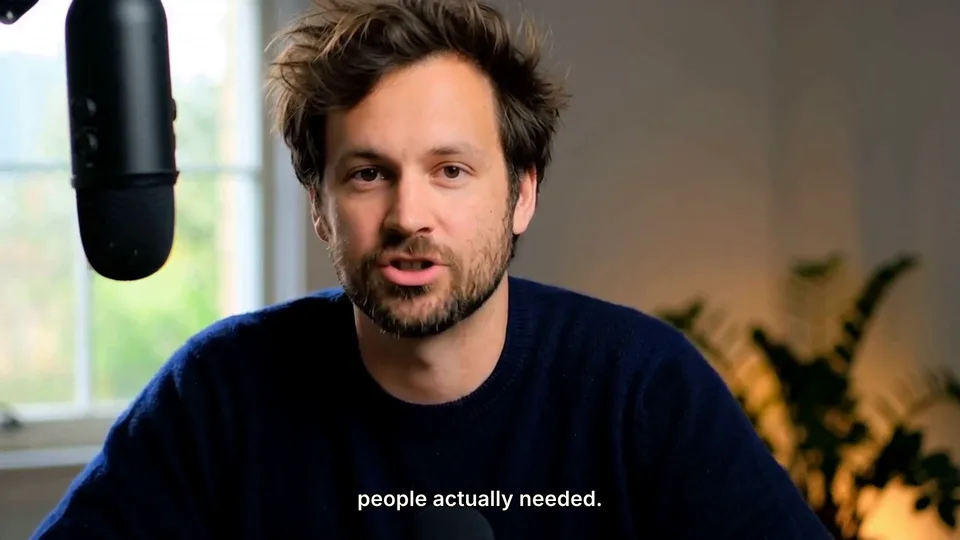
Keep the face for reactions, conclusions, and moments that need trust.
AI B-roll workflow
Captionate considers the words around a phrase, including setting, time, action, tone, and narrative purpose. A clip can be rejected even when it matches one keyword but contradicts the larger story.
B-roll changes the picture without interrupting the original speech. Each insert is aligned to a meaningful range, with deliberate returns to the speaker when a reaction or conclusion matters.
Start with footage already available to the project and review candidates from supported connected sources. The editor keeps the origin of each selected asset visible instead of flattening every source into one result.
Inspect the source, range, crop, and duration of each B-roll layer. Replace one choice directly or describe a new direction without rebuilding unrelated parts of the edit.
Use supporting footage in interviews, narration-led videos, tutorials, documentaries, product stories, and podcasts. The purpose of each insert can change while the selection process remains editable.
How it works
Start with the talking-head, podcast, interview, tutorial, or narration-led video you want to edit.
Ask AI to find places where a setting, action, object, process, or emotional shift should be shown.
Inspect why each clip was selected and where it enters and leaves the original timeline.
Choose another candidate or ask for a less literal, more specific, or differently paced visual direction.
Keep the original narration, confirm the visual cut, and render the completed video.
FAQ
An AI B-roll generator analyzes a video's speech and context, identifies moments that benefit from supporting footage, and helps choose and place relevant clips in the edit.
Yes. Captionate can identify suitable ranges in an existing video, choose supporting footage, and add it to the timeline while preserving the original narration.
Captionate considers the full sentence and surrounding context, including place, time, action, tone, and the role that the visual should play in the story.
Yes. B-roll replaces or supplements the picture while the original narration continues on its audio track.
Yes. Each selected clip and its timing remain editable, so you can replace one choice or ask for a different visual direction without restarting the entire edit.
Captionate can use project media as a source for supporting visuals when suitable footage is available. Available connected sources are shown in the editor.
B-roll can support talking-head videos, podcasts, interviews, explainers, tutorials, documentaries, and other narration-led edits.
Review each choice, refine the direction, and keep control of the finished edit.