01 / 05
Tighten the pauses that count nothing
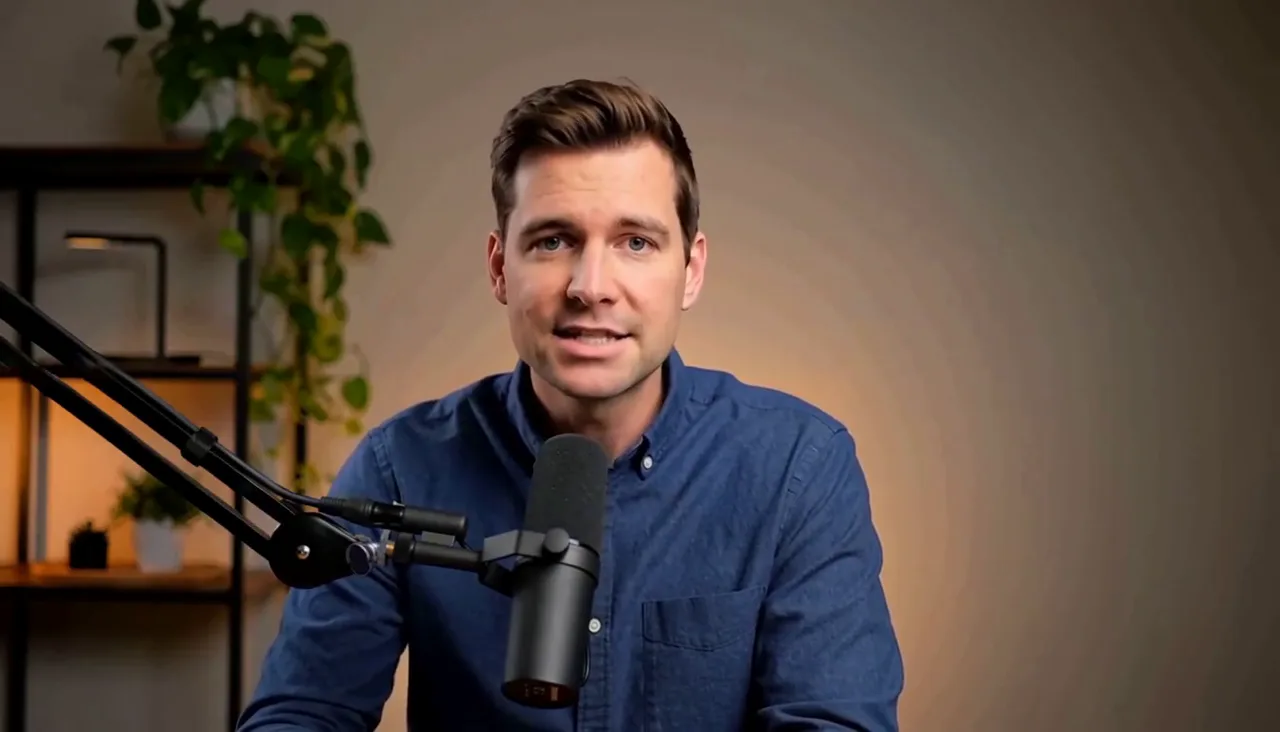
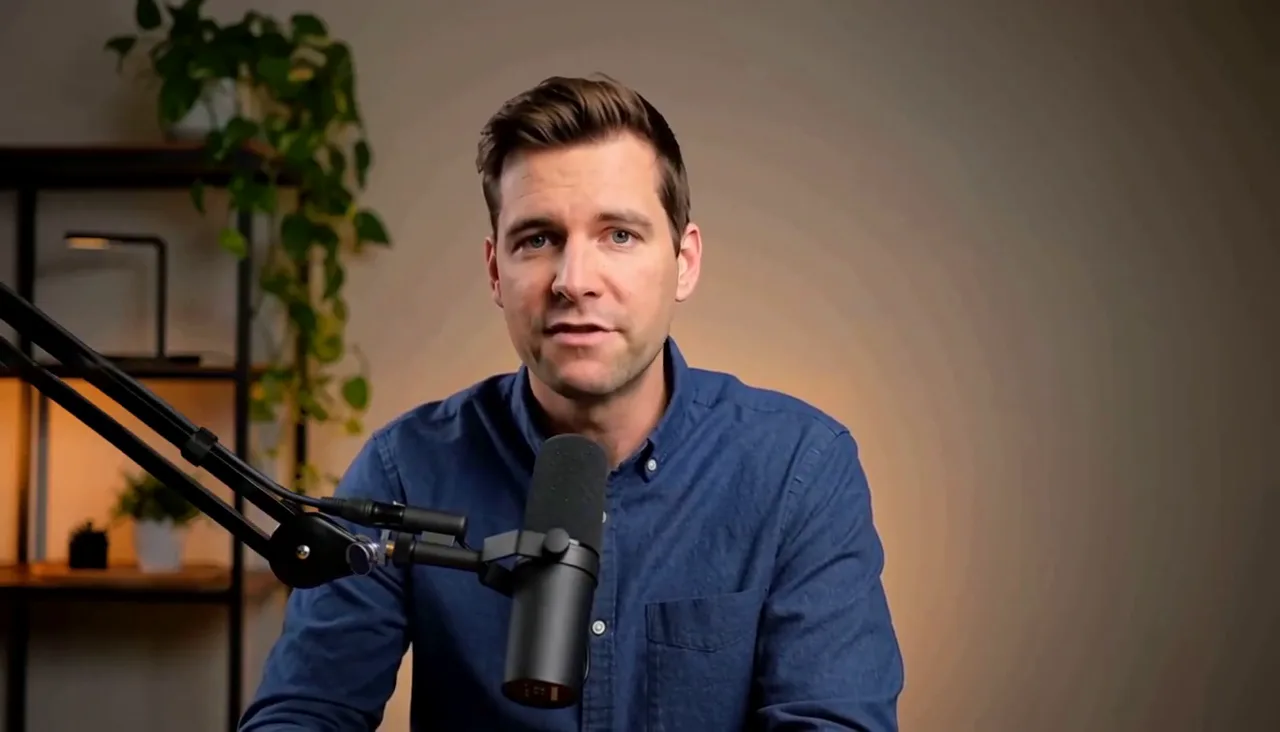
Two short gaps sit inside the list of three moments. They leave the take; the pause before the number stays.
Measured 0.46s and 0.52s trimmed · 1.06s reveal pause kept
AI Talking Head Video Editor
Tighten the pauses that add nothing, keep the one that lands, punch in on the point, and caption the line worth remembering.
What a request changes
Two short gaps sit inside the list of three moments. They leave the take; the pause before the number stays.
Measured 0.46s and 0.52s trimmed · 1.06s reveal pause kept
One scale on the sentence that matters. No second angle, no cutaway, no motion graphic competing with the sentence.
Anchor the speaker's face
Added 0 cutaways
The closing sentence is the one to keep. One caption, editable afterwards, and nothing over the rest of the take.
Editable copy · position · start · duration
Ask for nothing else and the edit stays clean. Restraint is a request the assistant will hold, not a limit you have to police.
Held no B-roll · no second punch-in · no graphics
If the first pass tightens a beat that mattered, one follow-up restores it and leaves the rest of the take alone.
Cut every pause so the take moves faster.
Put the beat before “fifty-one percent” back.
Source to result
Editing decisions
A pause before the payoff is part of the delivery, not dead air.
One sentence carries more weight without a second angle.
The last sentence is usually the one worth reading twice.
A clean take beats one buried in graphics.
Talking head workflow
A single take usually has gaps while you think or count through a list. Those can be trimmed in a sentence, while the pause before a reveal or a conclusion stays.
A punch-in on the number that matters carries more weight than a cutaway, and it stays adjustable after it lands.
Add captions to the whole take or to one sentence. The text, timing, style, and position stay editable so a caption can be tightened later.
You can ask for nothing else to be added. No B-roll, no second punch-in, no graphics unless the delivery needs them.
If a pass removes a beat that mattered, ask for it back. The pause returns without changing the cuts, punch-ins, or captions around it.
Captionate edits the single-camera recording you already have. Nothing about the shoot changes, and the original file is never overwritten.
How it works
Upload the recording. The original file is not cut or overwritten.
Say which pauses to tighten, where to punch in, and which line to caption.
See which gaps left and which beats stayed before you judge the result.
Ask for a beat back or for the pace to feel less clipped.
Render the finished take, or keep editing. Every cut stays adjustable.
FAQ
Yes. Describe the edit in a sentence and Captionate applies it to the take as real cuts, punch-ins, and captions that stay adjustable.
Only the pauses you ask it to tighten are cut. A pause before a reveal or a conclusion is kept unless you say otherwise.
Yes. A punch-in can be placed on a single sentence so it carries more weight without adding a camera change.
No. Restraint is a valid style: one punch-in and one caption often work better than filling the take with overlays.
Yes. A follow-up request restores a removed pause or beat without changing the rest of the edit.
Yes. A single fixed camera is the normal case: the edit works from the speech, the pauses, and the moments worth emphasising.
Tighten the count-ins, keep the beat, and caption the line that matters.