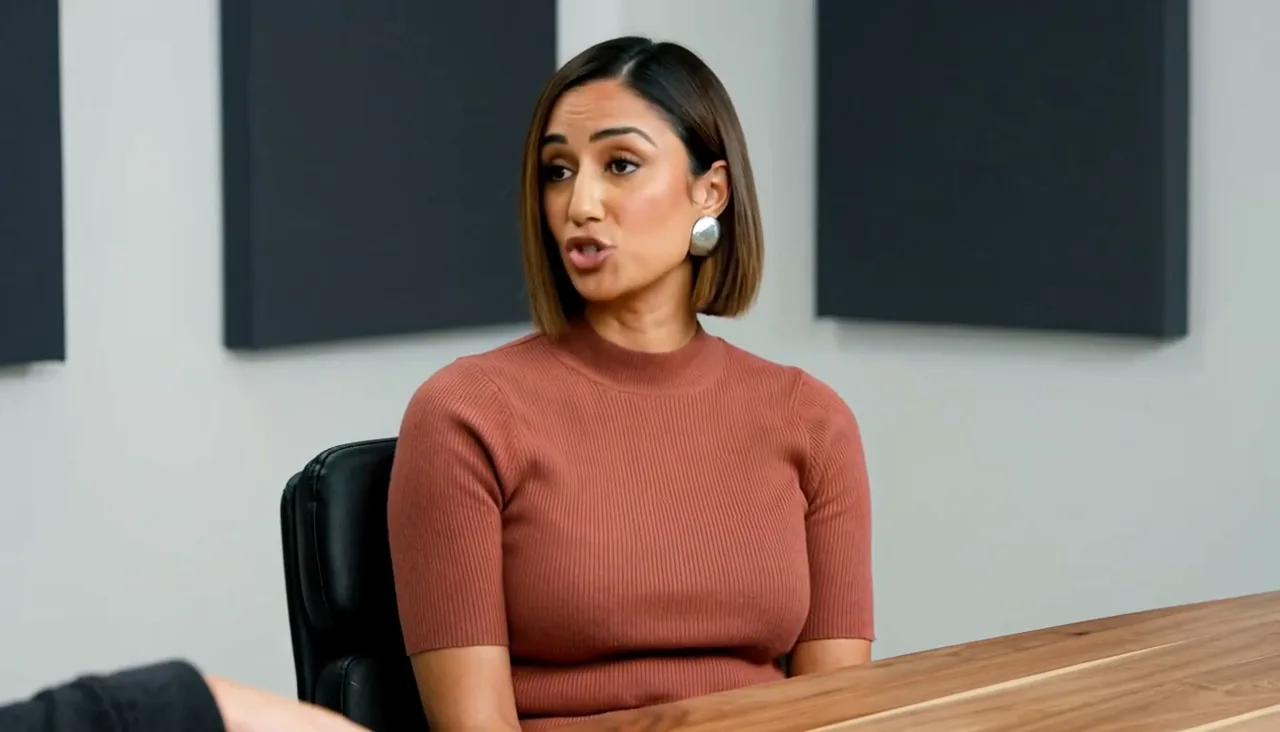
AI Podcast Video Editor

Turn a recording into a finished video podcast.

Keep the camera changes, stay with whoever is speaking, tighten the listening beats, and caption the line that lands.

  • Speaker-aware cuts
  • Editable captions
  • Multi-camera friendly
episode-14-cam-abc.mp43 requests · 1 constraint
Raw · 15.1s · three camerasCuts, punch-in, and captions stay editable

The cut follows the conversation.

Camera changes stay where the speakers change, and only the gap you ask for leaves the edit. Nothing lands on the wrong person.

2
Camera changes kept
0.5s
Trimmed from the tail
0.66s
Dramatic pause kept
1
Caption on the closing line

What a request changes

Keep the rhythm, keep the speaker.

01 / 05

Stay with whoever is speaking

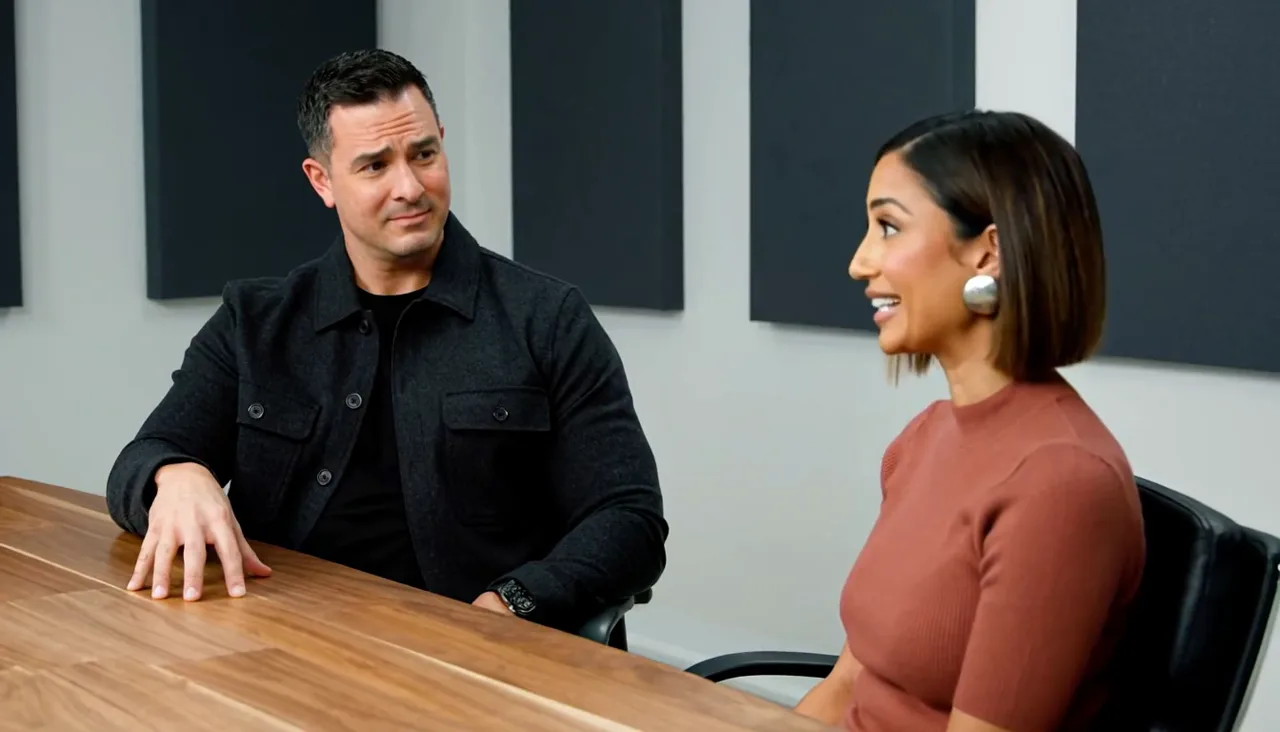
The recording already cuts from the host to the two-shot to the guest. The edit keeps those changes and never cuts away mid-sentence.

Cameras2 changes kept · no mid-sentence cut

Measured host 0–4.7s · two-shot 4.7–10.2s · guest single 10.2–15.0s
02 / 05

Tighten the listening beats, not the answers

Ask for the tail to go and the reply stays intact. The edit gets shorter without the conversation sounding clipped.

RhythmTail trimmed · answers intact

Measured listening beat 1.00s kept · pause before the closer 0.66s kept · tail 0.46s trimmed

03 / 05

Punch in when the point lands

A small scale on the speaker at “wrong audience” gives the sentence weight without cutting to another angle.

Punch-inSpeaker · 1.3× · 1.5s

Anchor the guest in the two-shot

Cut none added

04 / 05

Caption the line that lands

One caption on the closing sentence, not text over the whole episode. The line stays editable after it lands.

Caption1 line · 3.0s

Editable copy · position · start · duration · style

05 / 05

Make it feel natural again

If the first pass cuts the breath before the closing line, one follow-up brings the beat back and leaves everything else alone.

Follow-upPause cut · sounds rushed
You

Cut every quiet gap so it moves faster.

2 gaps removed15.1s → 13.4s
You · follow-up

Keep the conversation more natural. Put the beat before the last line back.

Requested changePause restored · camera cuts unchanged · captions unchanged
  • This request · 0.66s pause restored
  • Camera cuts · 2, unchanged
  • Captions · unchanged
  • Tail · still trimmed

Source to result

One recording, one finished episode.

  1. 01Multi-camera recordingHost · two-shot · guest
  2. 02Speaker-aware cutsCamera changes kept
  3. 03Rhythm and emphasisBeats kept, tail trimmed
  4. 04Follow-up correctionNatural again in one sentence
  5. 05Finished episodeStill editable after export

Conversation decisions

Four calls that keep a podcast watchable.

Follow the speaker

The cut lands where the conversation hands over, not mid-sentence.

Keep the beat

A pause before the closing line is part of the delivery.

Punch in on the point

A small scale on the speaker replaces an extra camera cut.

Nobody watched

Caption one line

One quoted sentence, not text over the whole episode.

Podcast workflow

Edit a video podcast with AI instead of rebuilding it by hand.

Keep the camera changes the recording already has

Multi-camera podcast recordings switch angles at sentence boundaries. The edit keeps those changes and stays with whoever is speaking, so the video never cuts away from the person talking.

Tighten the rhythm without clipping the answers

Ask for the tail or a listening beat to be trimmed, and the replies stay intact. The episode gets shorter while the conversation keeps its natural pace.

Punch in instead of adding another angle

A small scale on the speaker at the sentence that matters gives it weight without introducing a camera change that was never recorded.

Caption the line that lands

Add captions to the whole episode or just one quote. The text, timing, position, and style stay editable, so a caption can be tightened after the fact.

Fix an edit that feels unnatural

If a pass moves too fast and the conversation sounds clipped, ask for it to be more natural in a sentence. The beat comes back and the rest of the timeline stays put.

Work from the recording you already have

Captionate edits the multi-camera files you already recorded. Recording, hosting, and distribution stay in the tools you already use, and nothing overwrites the original.

How it works

From raw recording to a finished episode.

  1. Bring in the recording

    Upload the episode. The original files are not cut or overwritten.

  2. Describe the edit

    Say what to trim, where to punch in, and which line to caption.

  3. Review the timeline

    See the camera changes, the beats that stayed, and the gap that left.

  4. Refine with a follow-up

    Ask for a beat back, or for the pacing to feel more natural.

  5. Export the episode

    Render the finished video podcast, or keep editing. Every cut stays adjustable.

FAQ

Podcast editing questions.

Can I edit a video podcast with AI?

Yes. You describe the changes in a sentence and Captionate applies them to the recording as real cuts, punch-ins, and captions you can still adjust.

Does it handle multiple cameras?

The edit keeps the existing camera changes and stays with whoever is speaking, so a cut never lands on the wrong person.

Will it cut the conversation too tight?

Only the gaps you ask it to trim are removed. Listening beats and pauses that carry meaning stay unless you ask for them to go.

Can I add captions to the podcast video?

Yes. Captions can be added on one line, on the whole episode, or on a single quote, and the text, timing, and style stay editable.

Can I fix an edit that feels unnatural?

Yes. A follow-up request like keeping the conversation more natural restores timing without rebuilding the edit.

Does it record or host my podcast?

No. Captionate edits the footage you already recorded. Recording and hosting stay in your own tools.

Start with the episode you already recorded

Keep the conversation. Finish the video.

Describe the edit, check which beats stayed, and ask for anything back.

Edit podcast